
GoHighLevel Tags: Best Practices for a Clean CRM
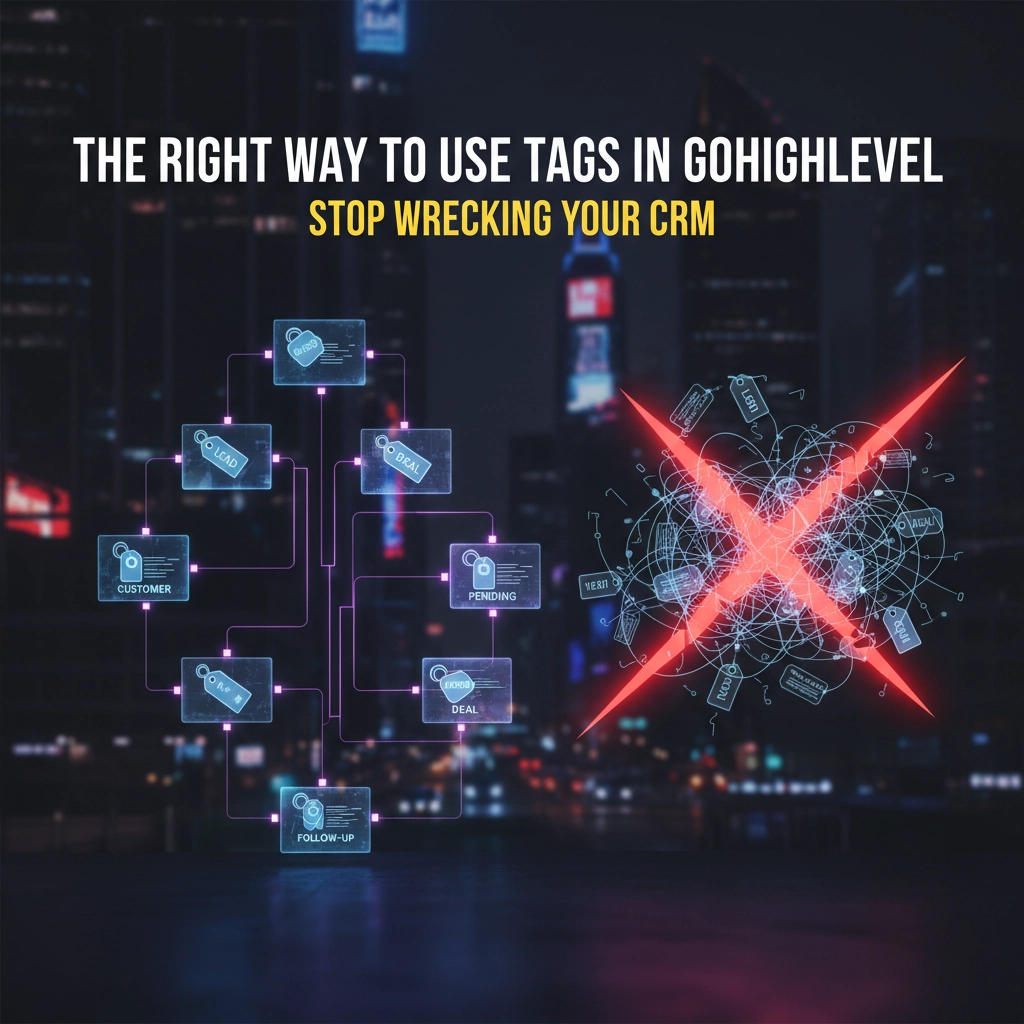
Quick answer: Use GoHighLevel tags for temporary behaviors and automation triggers, not permanent facts. Store stable information in custom fields, track sales status in opportunities, and keep manual context in notes or tasks. A clear naming system plus scheduled cleanup prevents duplicate tags, broken workflows, and unreliable reporting.
GoHighLevel tags become a problem when they are treated like permanent labels instead of temporary operating signals.
They’re treating tags like digital sticky notes. Slapping “Male,” “Coach,” and “Client” on contacts like they’re organizing a junk drawer.
Then they wonder why their automations break, their segmentation sucks, and their pipeline looks like a tornado hit it.
If you’re one of these people, this post will save your sanity (and your revenue).
What Tags Are REALLY For (Hint: Not What You Think)
Tags aren’t permanent labels. They’re behavioral triggers and temporary flags that power your automation engine.
Think of them as motion sensors in your CRM. They detect when someone does something, then trigger the next action in your sequence.
Here’s what tags should track:
- Actions taken: “Clicked-Pricing-Page,” “Downloaded-Lead-Magnet,” “Watched-Demo-Video”
- Engagement levels: “Highly-Engaged,” “Cold-Lead,” “Ready-To-Buy”
- Workflow statuses: “In-Nurture-Sequence,” “Booked-Discovery-Call,” “No-Show”
- Campaign responses: “Facebook-Ad-Clicked,” “Email-Opened,” “SMS-Replied”
Notice something? These are all temporary states that change based on behavior.

What Tags Are NOT For (Stop Doing This!)
Tags are NOT permanent storage containers for demographic data or static information.
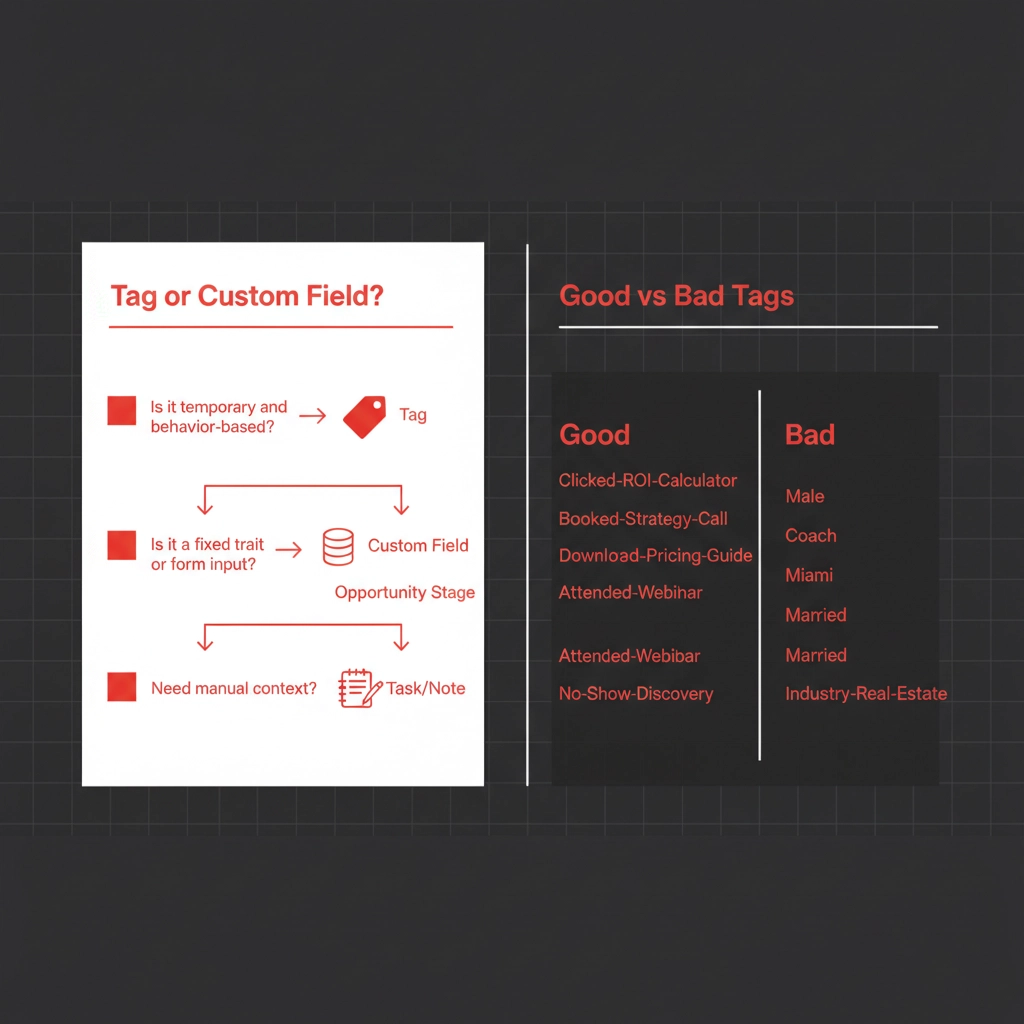
❌ Bad Tags:
- Male/Female
- Coach/Consultant
- Miami/New York
- Married/Single
- Industry-Real-Estate
✅ Good Tags:
- Clicked-ROI-Calculator
- Booked-Strategy-Call
- Downloaded-Pricing-Guide
- Attended-Webinar
- No-Show-Discovery
See the difference? Bad tags describe WHO someone is. Good tags describe WHAT someone did.
The Tag vs. Custom Field Showdown
Here’s the framework that’ll save your CRM:
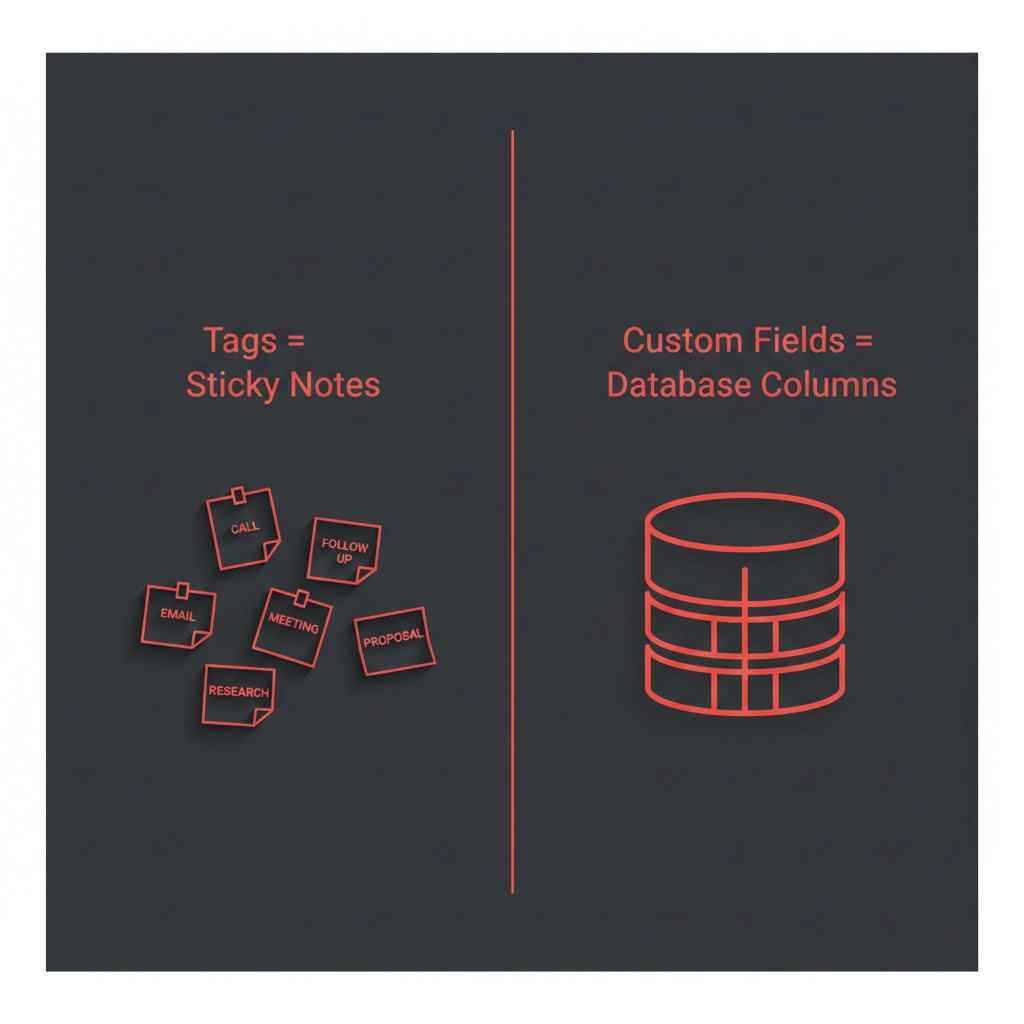
Tags = Sticky Notes (temporary, behavior-based) Custom Fields = Database Columns (permanent, trait-based)
If the information never changes or rarely changes, it belongs in a custom field:
- Name
- Gender
- Industry
- Company Size
- Location
If the information changes based on actions they take, it belongs in a tag:
- Campaign source
- Engagement status
- Workflow position
- Interest level
Tag Best Practices That Actually Work
1. Use Prefixing Like a Pro
Organize your tags with consistent prefixes:
- Action-Based: “Clicked-”, “Downloaded-”, “Watched-”
- Status-Based: “Status-”, “Stage-”, “Level-”
- Campaign-Based: “FB-Ad-”, “Email-”, “Webinar-”
- Workflow-Based: “Flow-”, “Sequence-”, “Follow-”
Example: “Clicked-Pricing-Page” instead of just “Pricing Page”
2. Auto-Remove Tags After Workflow Completion
This is where most people screw up. They add tags but never remove them.
Set up workflows to automatically remove tags when:
- A sequence completes
- Someone moves to the next stage
- A time period expires
- A specific action occurs
Your contact should never have 47 tags attached. That’s not organization: it’s chaos.

3. Use Workflows to Add/Remove Intelligently
Don’t manually add tags unless absolutely necessary. Let your workflows do the heavy lifting:
Smart Tag Management:
- Form submission → Add “New-Lead” tag → Start nurture sequence
- Email clicked → Add “Engaged” tag, remove “Cold-Lead” tag
- Call booked → Add “Scheduled-Call” tag, remove “In-Nurture”
- No-show → Add “No-Show” tag, remove “Scheduled-Call”
The Simple Decision Flowchart
Confused about when to use tags vs. custom fields? Use this:
Is it temporary and behavior-based? → Use a tag
Is it a fixed trait or form input? → Use a custom field
Does it represent sales status? → Use opportunity/pipeline stage
Do you need manual context? → Use tasks or notes
Custom Fields vs. Tags vs. Opportunities vs. Notes
Let’s clear up the confusion once and for all:
Custom Fields: Store permanent data (name, company, phone) Tags: Track temporary behaviors and trigger automations Opportunities: Represent specific deals moving through your sales pipeline Notes/Tasks: Manual context and reminders for your team
One contact can have multiple opportunities (think: same client, different services), but they should have targeted, relevant tags: not a laundry list.
Bonus: Monthly Tag Cleanup Workflow
Here’s a workflow you can build to keep your tags clean:
Step 1: Create a monthly automation that reviews all tags Step 2: Identify tags that haven’t been used in 90+ days Step 3: Remove outdated tags or consolidate similar ones Step 4: Update your team on any tag changes
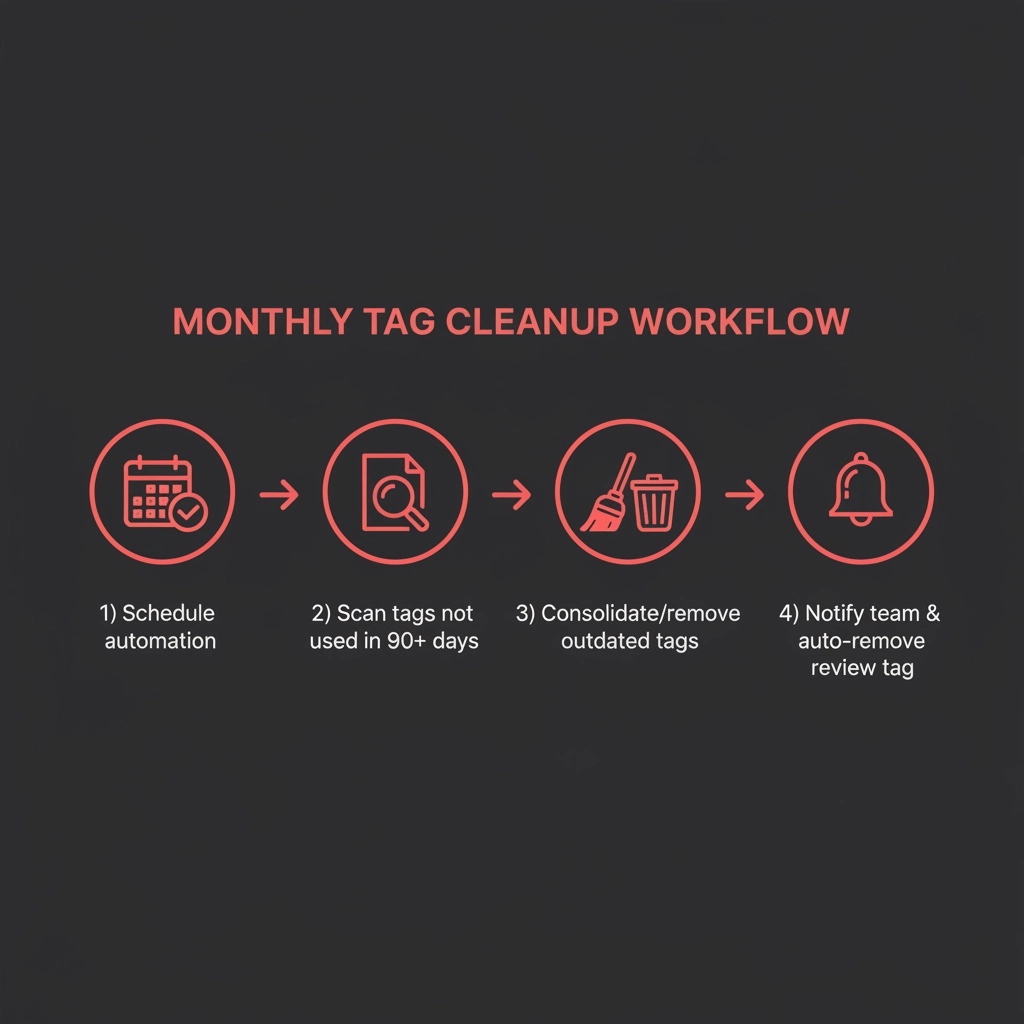
Pro tip: Set up a “Tag-Cleanup-Review” tag that gets applied monthly to contacts for audit purposes, then auto-removed after review.
The Million-Dollar Tag Strategy
Want to know the secret sauce? Use tags to create micro-audiences for hyper-targeted follow-up.
Instead of blasting your entire list with generic messages, use tag combinations to create laser-focused campaigns:
- “Downloaded-Pricing-Guide” + “High-Ticket-Interest” = Premium offer sequence
- “Attended-Webinar” + “Asked-Questions” = Direct sales outreach
- “Clicked-Case-Study” + “Service-Based-Business” = Relevant success stories
This is how you turn a generic CRM into a revenue-generating machine.
Stop the Madness (Your CRM Will Thank You)
Here’s the bottom line: Tags are automation fuel, not digital filing cabinets.
Use them to track behaviors, trigger sequences, and segment your audience for targeted follow-up. Use custom fields for everything else.
Get this right, and your GoHighLevel system becomes a conversion machine. Get it wrong, and you’re just another coach drowning in CRM chaos.
Ready to audit your tag disaster? Book the revenue audit and let’s build you a tag system that actually generates revenue instead of headaches.
Your future self (and your bank account) will thank you.
GoHighLevel Tags FAQ
What should GoHighLevel tags be used for?
Use tags for temporary behaviors, campaign responses, and automation triggers. Keep permanent facts in custom fields and sales status in opportunity stages.
When should I use a custom field instead of a tag?
Use a custom field for stable traits or form answers, including industry, company size, location, and service interest.
How often should I clean up GoHighLevel tags?
Review tags monthly. Remove unused tags, consolidate duplicates, and confirm that every active tag supports a workflow, report, or clear operating need.
Need the account cleaned up or built correctly? See our GoHighLevel expert and setup service, or start the Revenue Audit.